
Decide what stays, and when.
LanguageEnglish
01
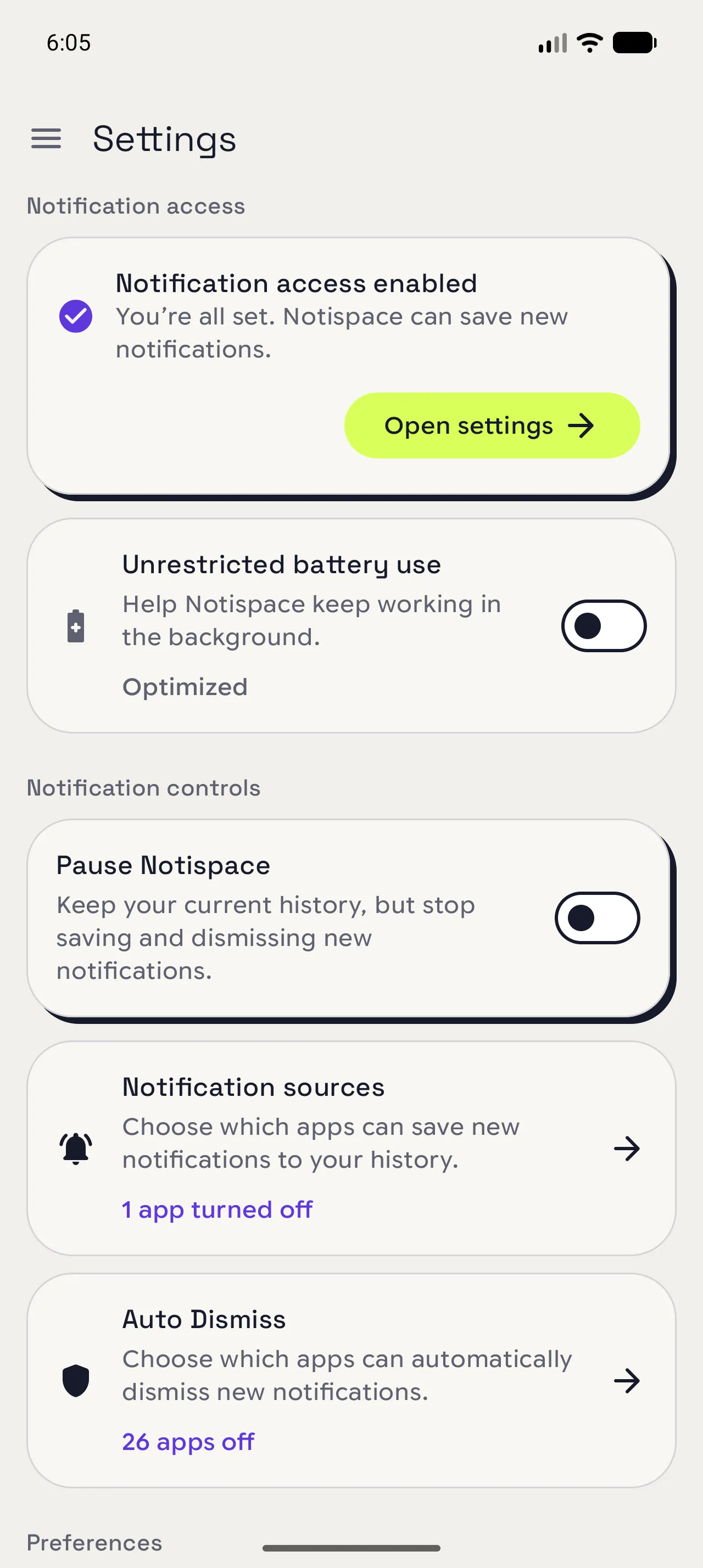
Open the history controls
From Settings, find the Notification controls card. Pause sits there, while the Keep history card is lower in the data section.
02
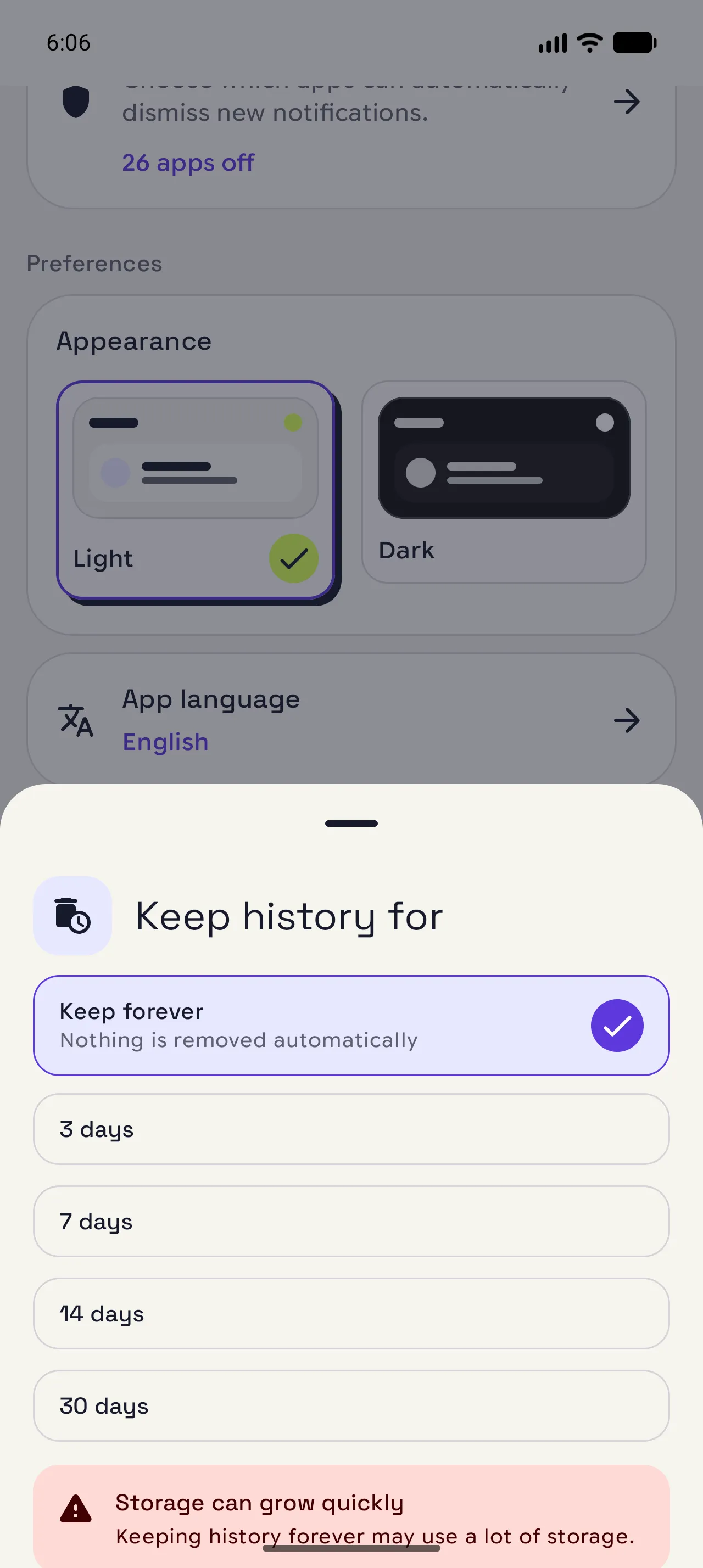
Set a cleanup window
Open Keep history and choose Never, 3 days, 7 days, 14 days, or 30 days. Cleanup removes older unstarred records.
03
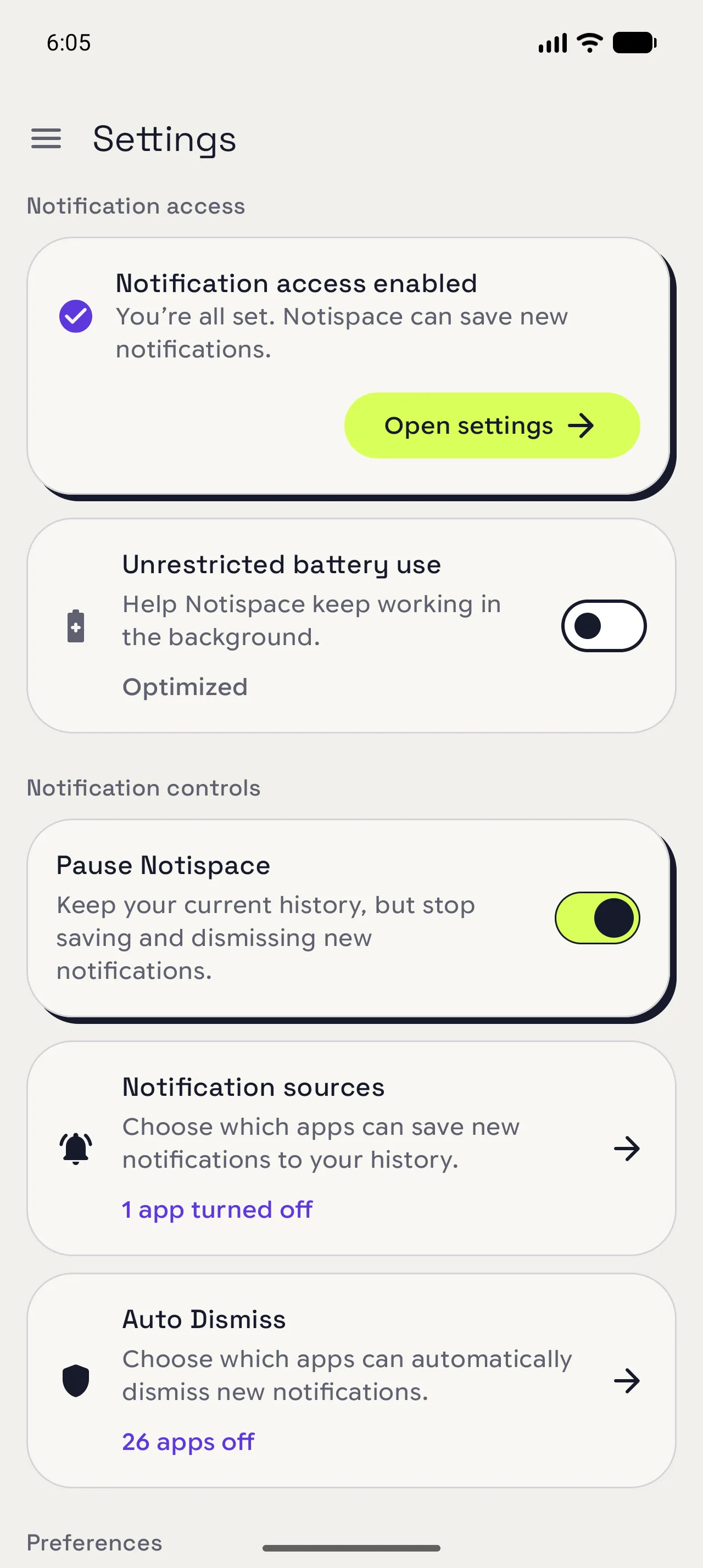
Pause incoming records
Turn on Pause Notispace when the next few notifications should stay out of the history. Turn it off from the same card when the break is over.
When you are done
Keep history on your terms.
Retention removes older records on schedule; pause leaves existing history alone and stops new processing for a while.
Open in NotispaceOpen the appA few notes
- Starred records are protected from retention cleanup.
- A paused state affects logging and Auto Dismiss processing until you resume.