
Build the export around the question you have.
LanguageEnglish
01
Open Export
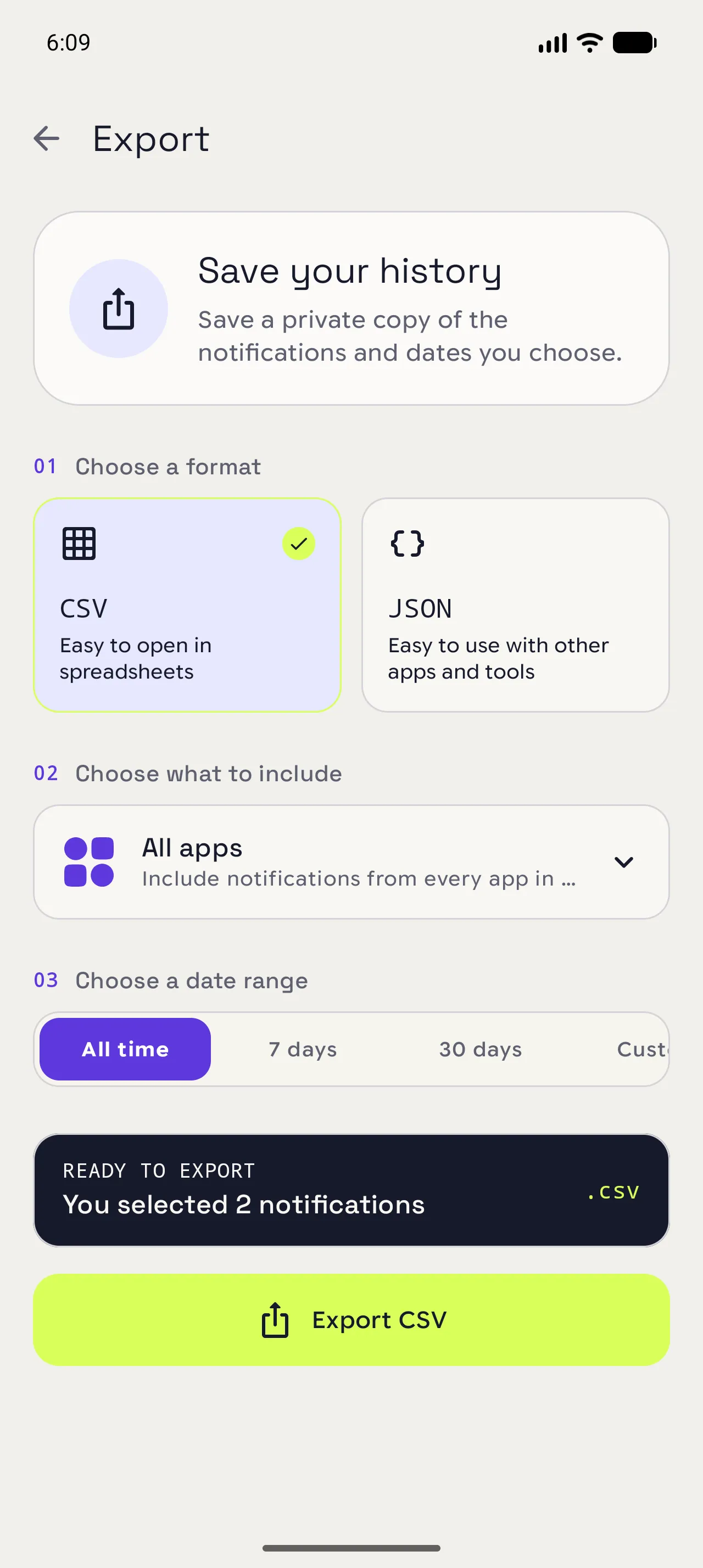
From Settings, choose Export. Galaxy is required before the export options can be used.
02
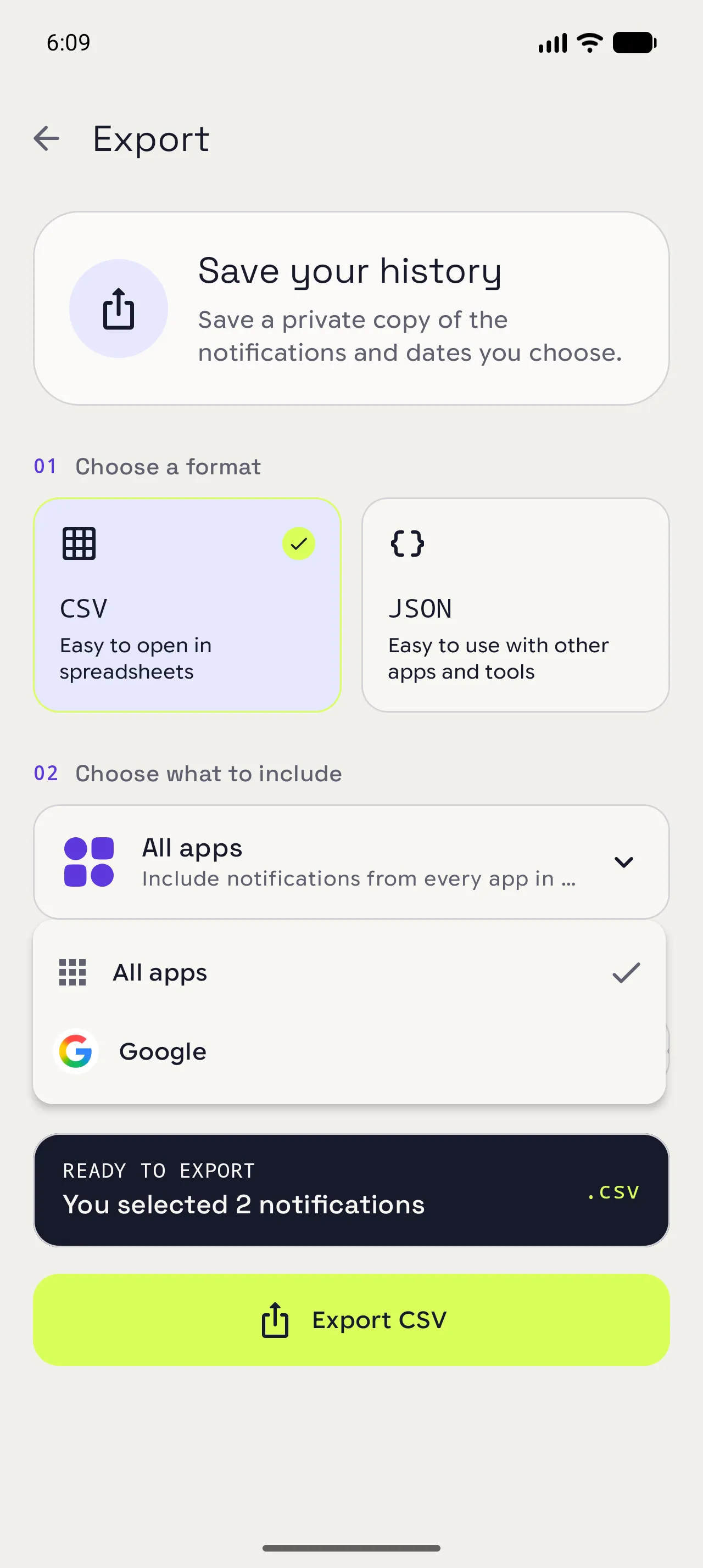
Choose what to include
Keep all apps or narrow the selection before you export. The summary updates to show how many records are ready.
03
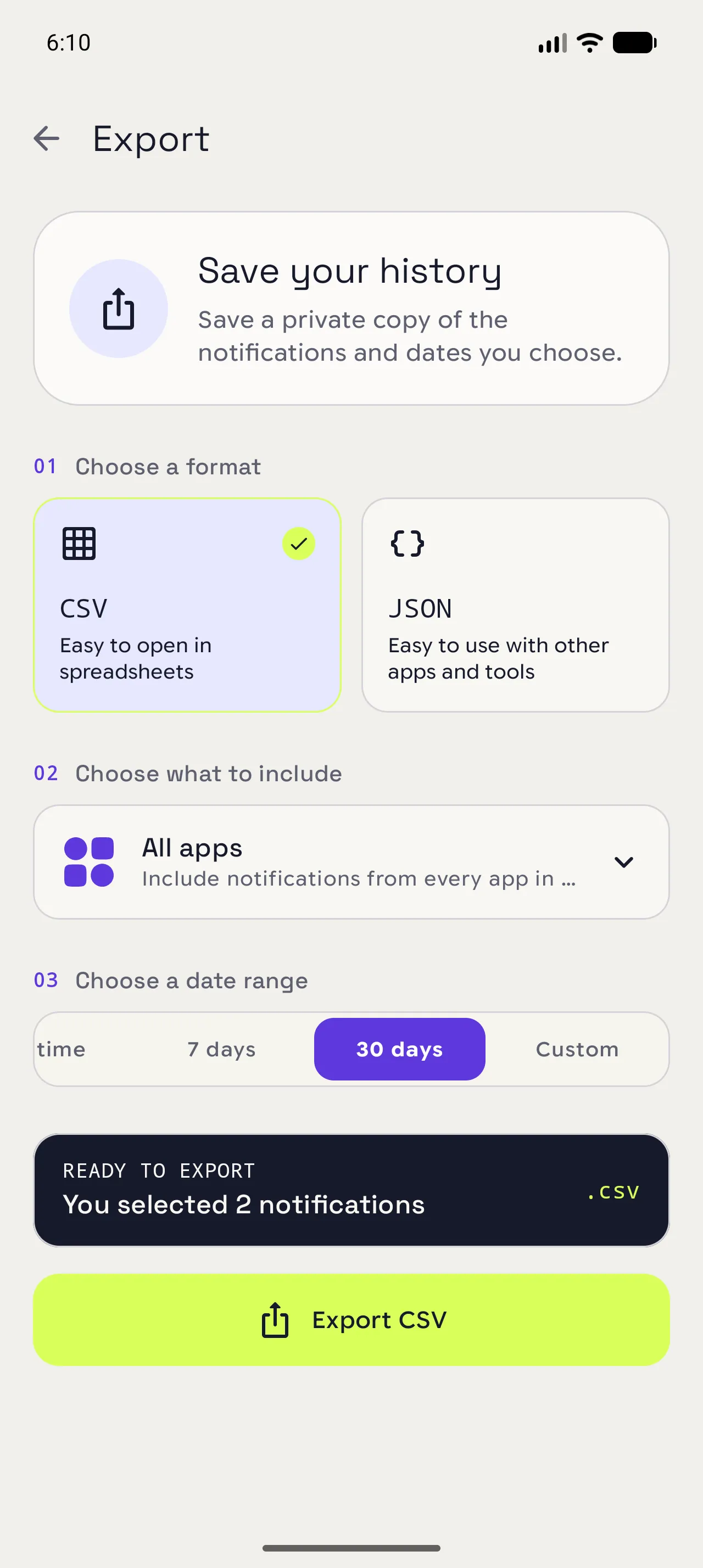
Set the dates and save
Pick a date range, check the ready summary, and tap Export CSV or Export JSON. Android then shows the available place or app for the file.
When you are done
You leave with a smaller copy of history.
Notispace creates a file containing only the notifications and dates you selected.
Open in NotispaceOpen the appA few notes
- Export is a Galaxy feature and uses the localized one-time purchase flow from Google Play.
- Do not share an export file unless you are comfortable sharing the notification content inside it.