
Read the pattern behind the numbers.
LanguageEnglish
01
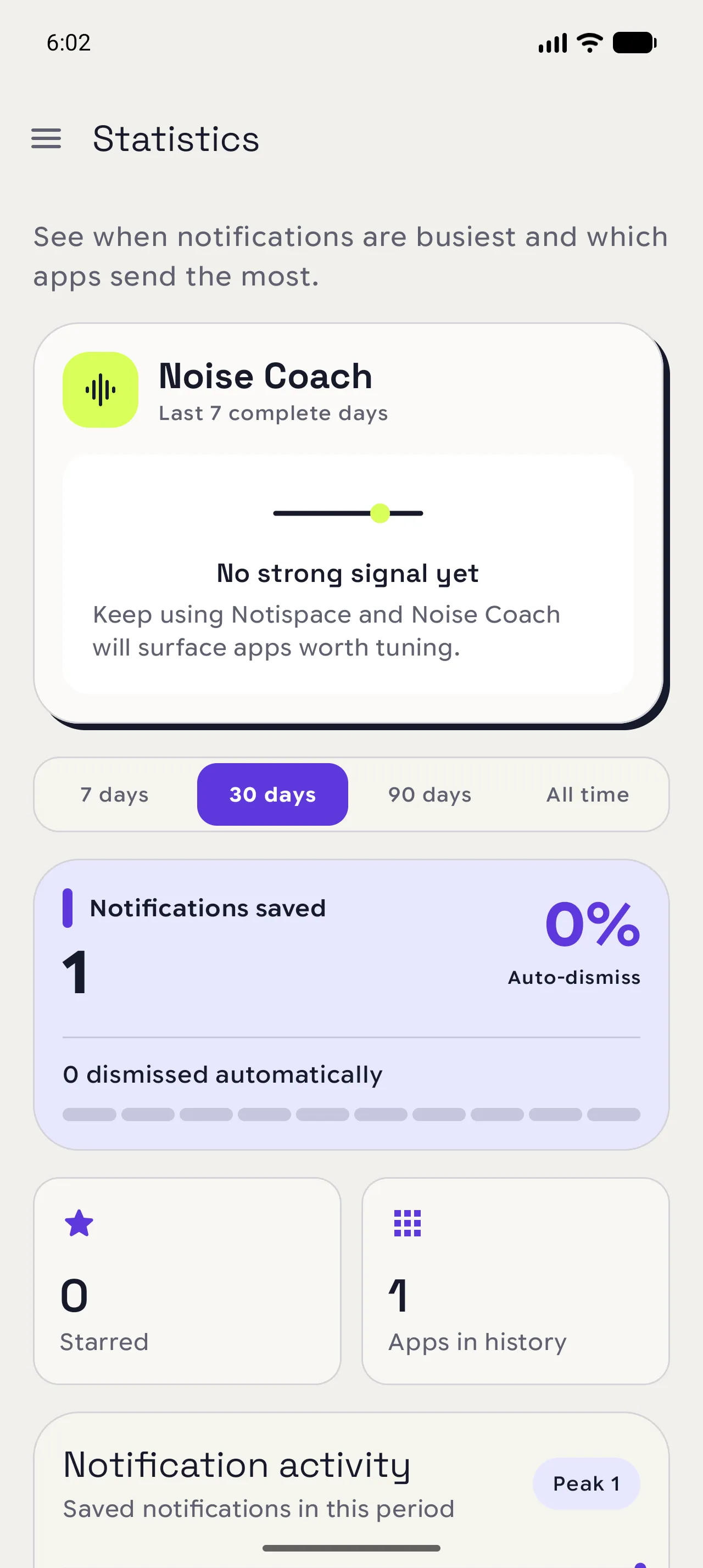
Open Statistics
Open the menu and choose Statistics. Noise Coach starts with a short read of your recent activity.
02
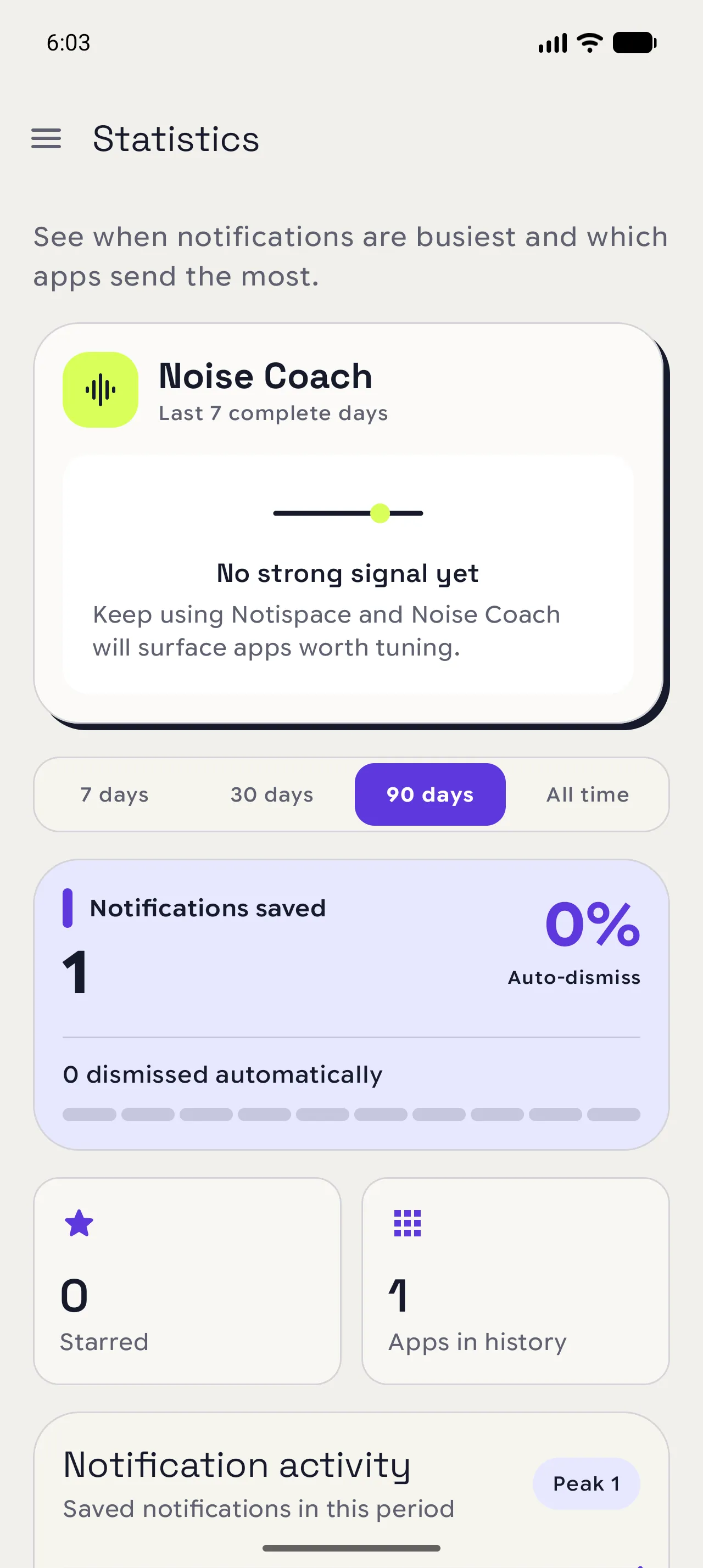
Pick a time range
Switch between 7 days, 30 days, 90 days, and All time. Short windows show recent changes; longer windows reveal the shape of your routine.
03
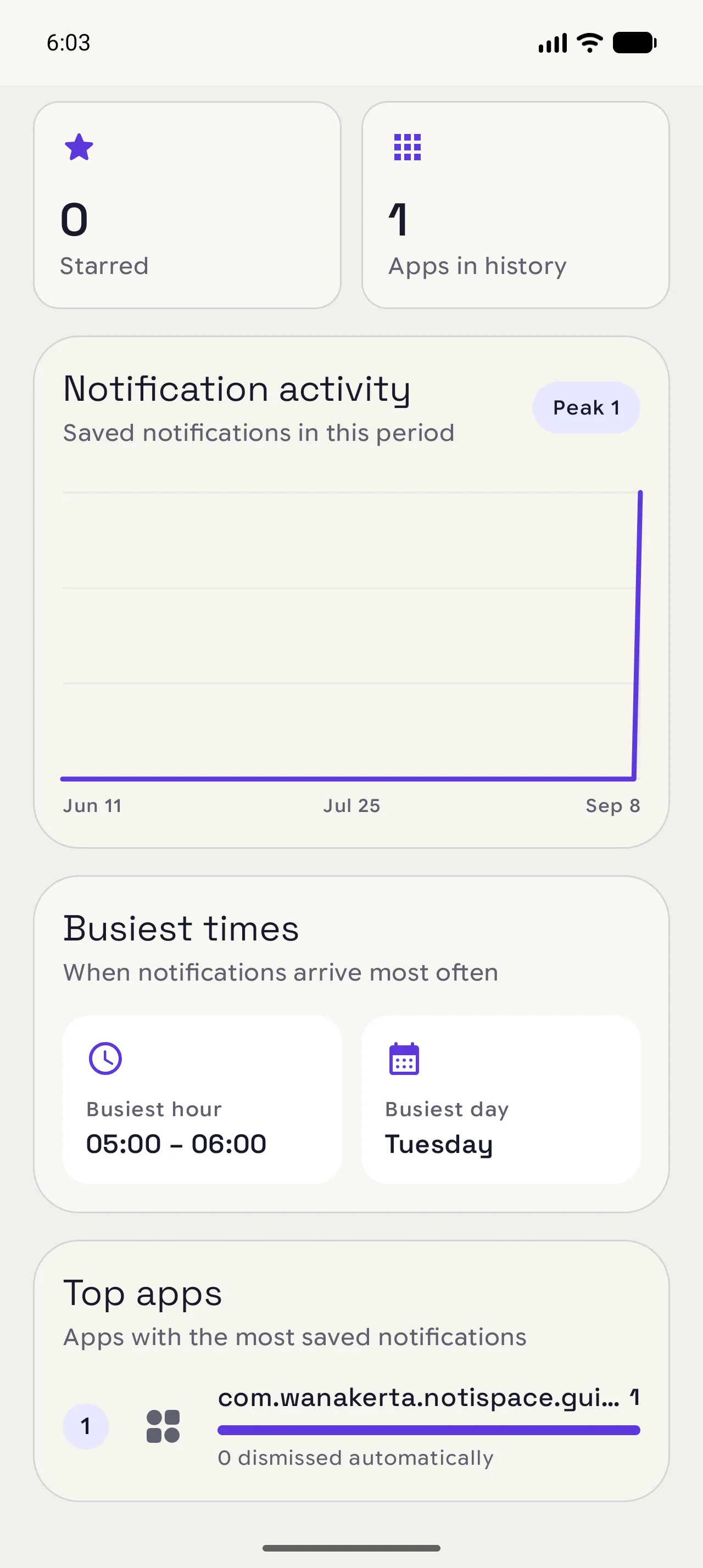
Read the activity cards
Read saved notifications, automatic dismissals, starred items, app count, and the activity chart. These values describe the history on your device.
When you are done
Let the pattern suggest the next setting.
Use the busiest period or app as a clue for what to tune next.
Open in NotispaceOpen the appA few notes
- Statistics use the records that are currently in Notispace.
- Values in product examples are examples, not a promise about your own activity.