
Keep the private parts in your hands.
LanguageEnglish
01
Open Privacy
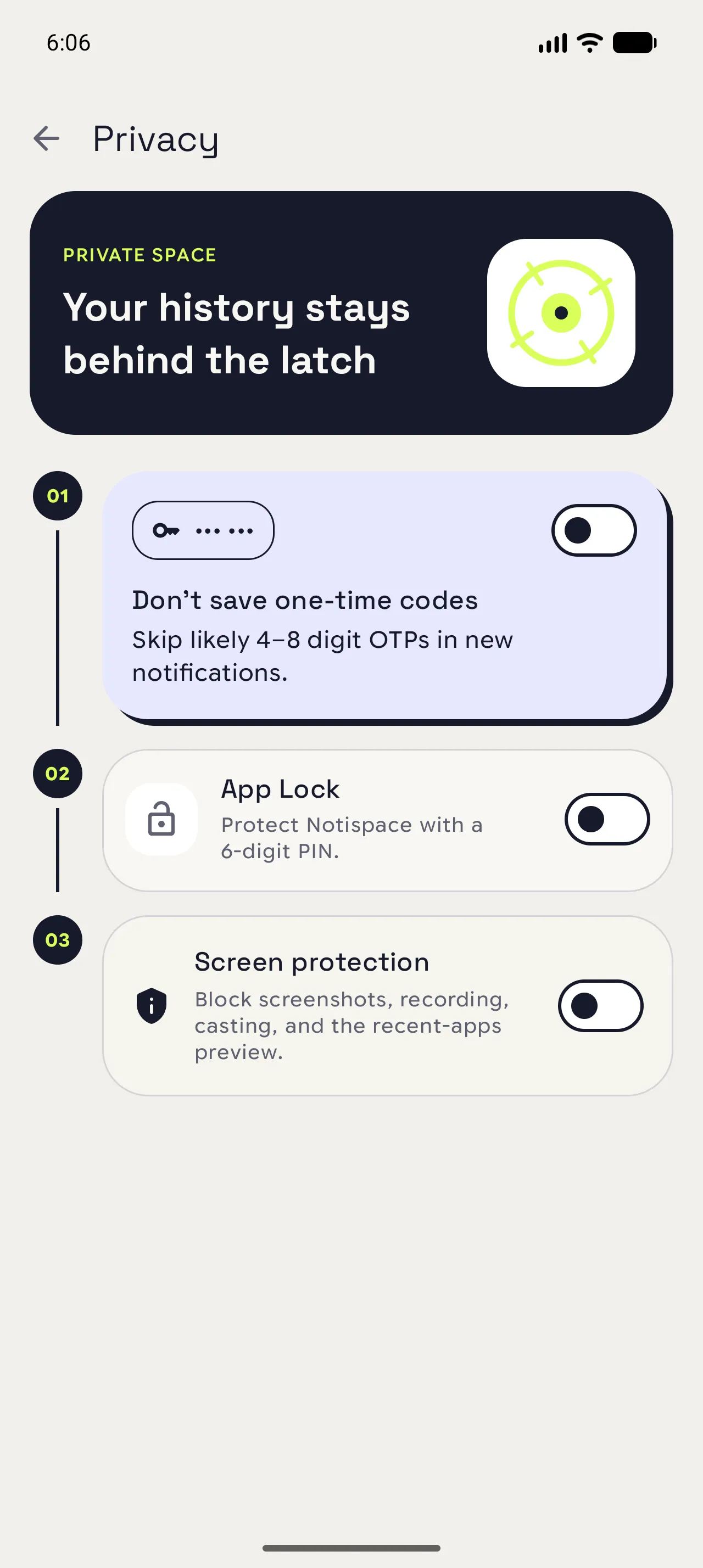
From Settings, choose Privacy. This page brings the local history, code filter, and lock choices together.
02
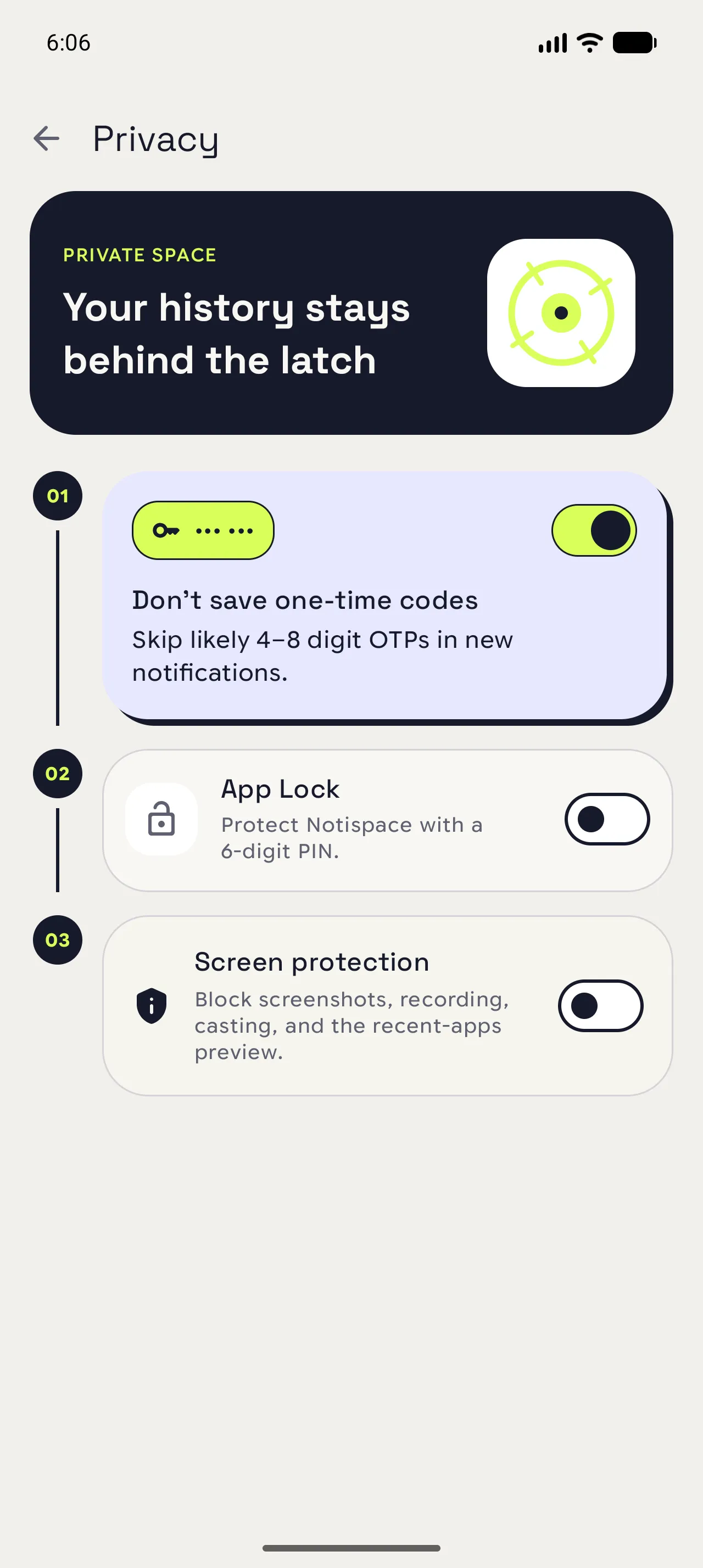
Skip likely one-time codes
Turn on the code filter if likely 4 to 8 digit codes should stay out of new notifications. It does not scan or change older history.
03
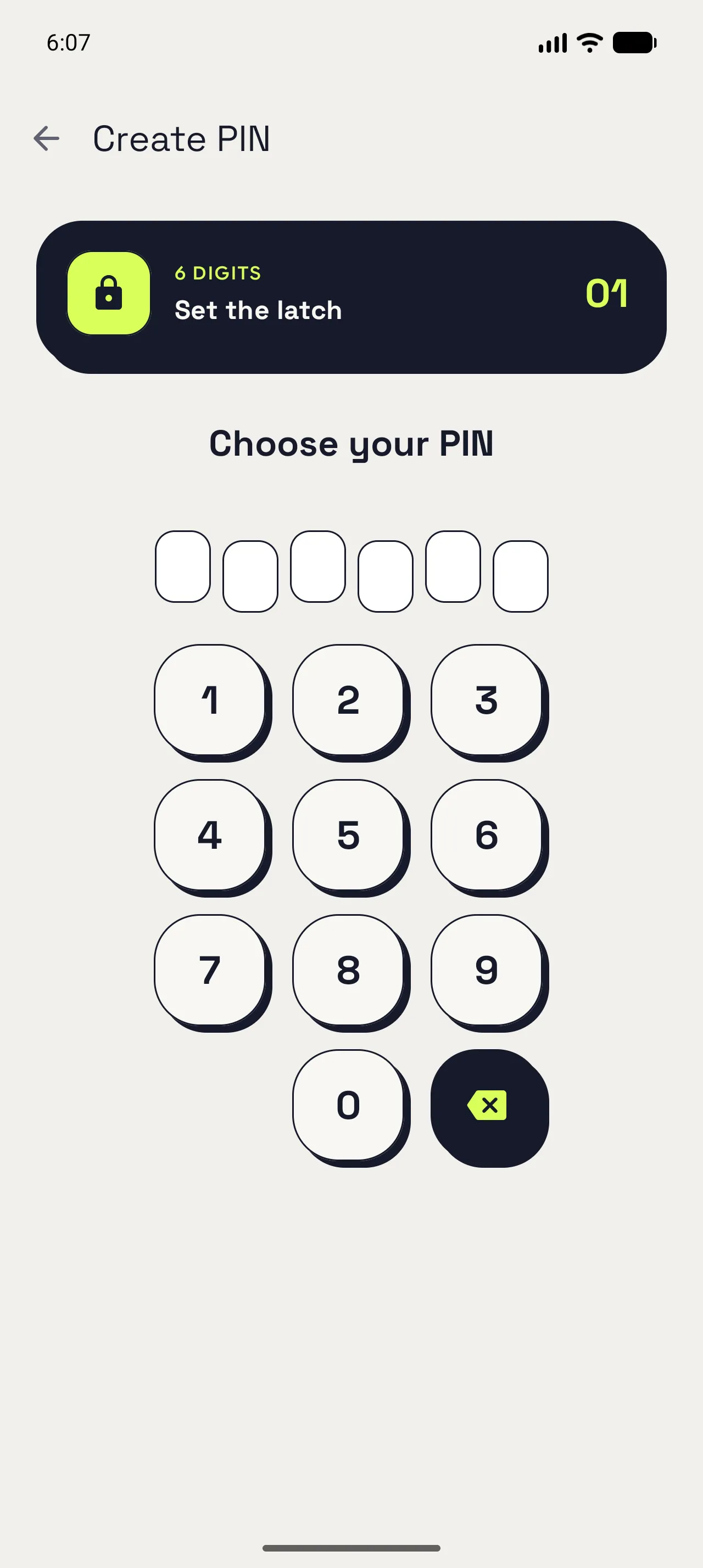
Create the extra lock
Open App Lock and choose a six-digit PIN. Screen protection is a separate switch for recent-app previews, screenshots, recording, and casting.
When you are done
Privacy follows your routine.
Your history stays on the Android device, with the lock and preview controls you chose for the app.
Open in NotispaceOpen the appA few notes
- Screen protection and App Lock are separate settings. App Lock alone does not block screenshots.