
Choose the part that needs changing.
LanguageEnglish
01
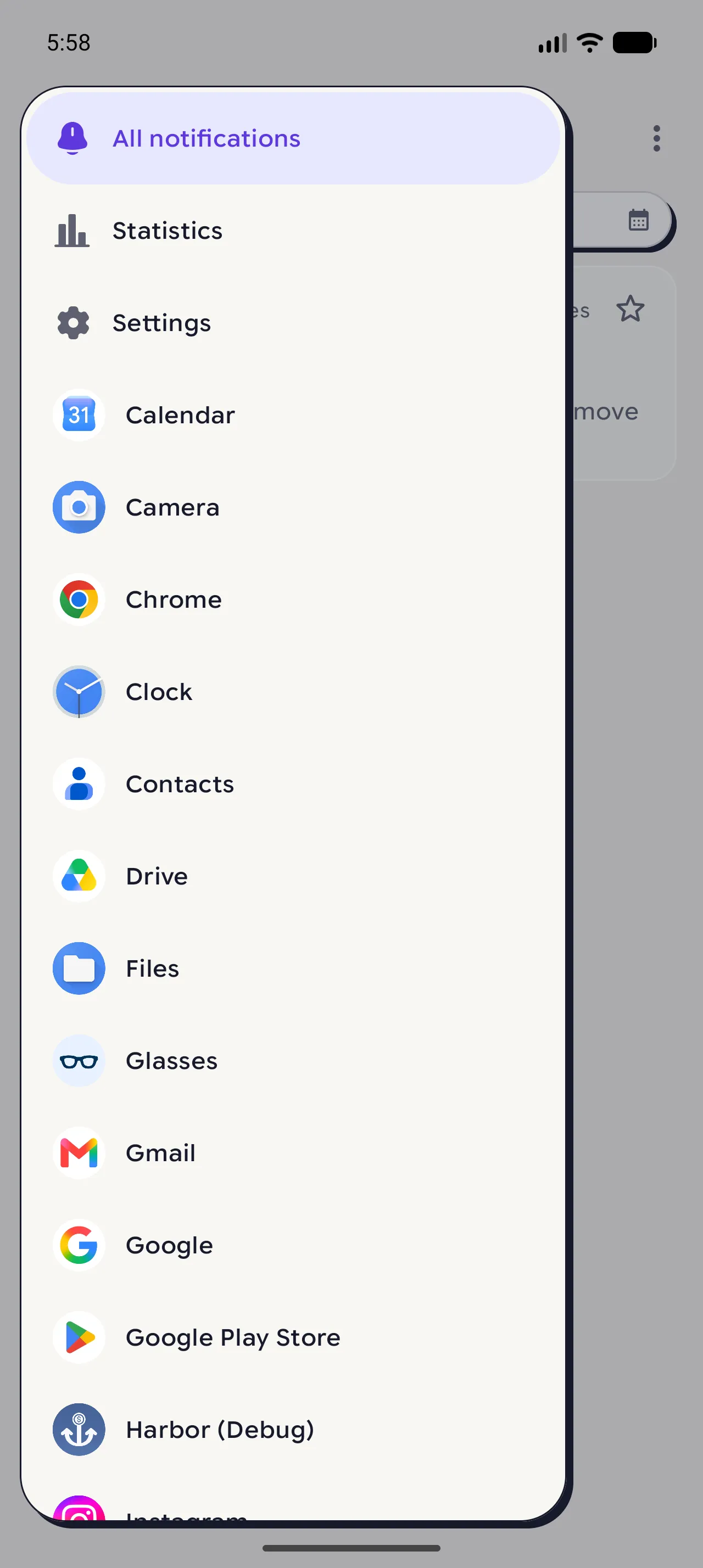
Find the controls
From Home, open the menu and select Settings. Appearance and language live in separate cards lower down the page.
02
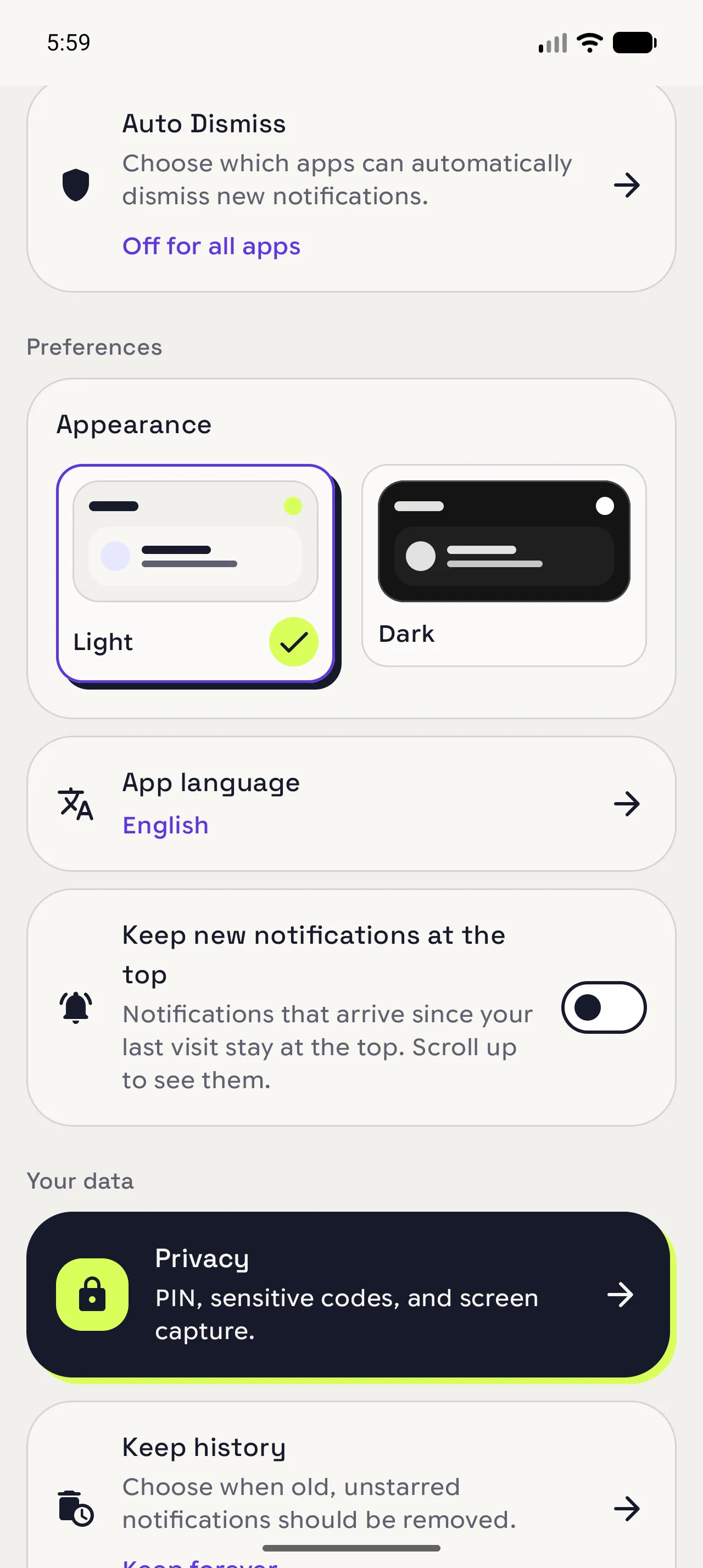
Set the screen tone
In Appearance, compare Light and Dark. Pick the card that feels easiest to read in the room where you use Notispace.
03
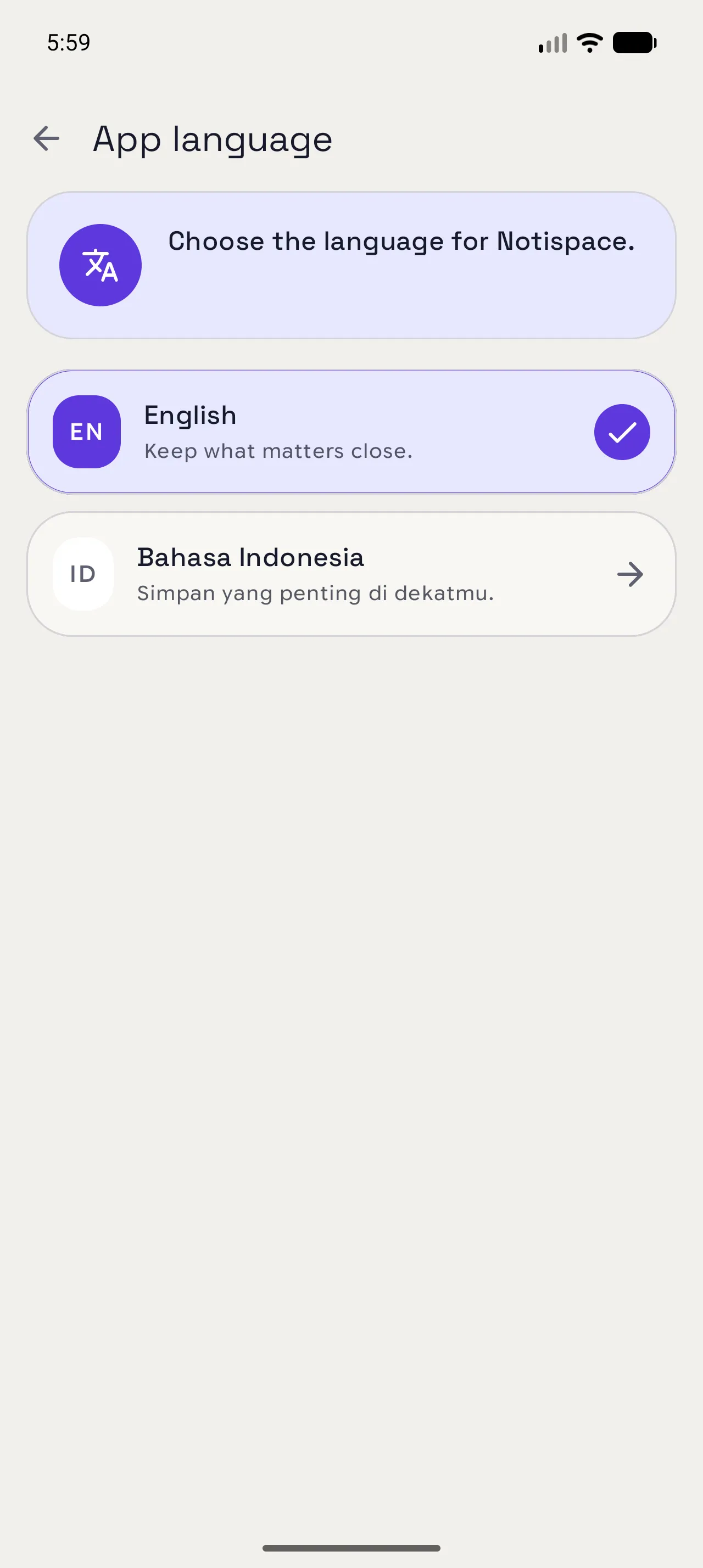
Change the words you read
Open App language and choose English or Bahasa Indonesia. The labels change as soon as you make the choice.
When you are done
Your history is left alone.
The new theme or language takes effect without moving or deleting any saved notifications.
Open in NotispaceOpen the app