
Keep one notification in view.
LanguageEnglish
01
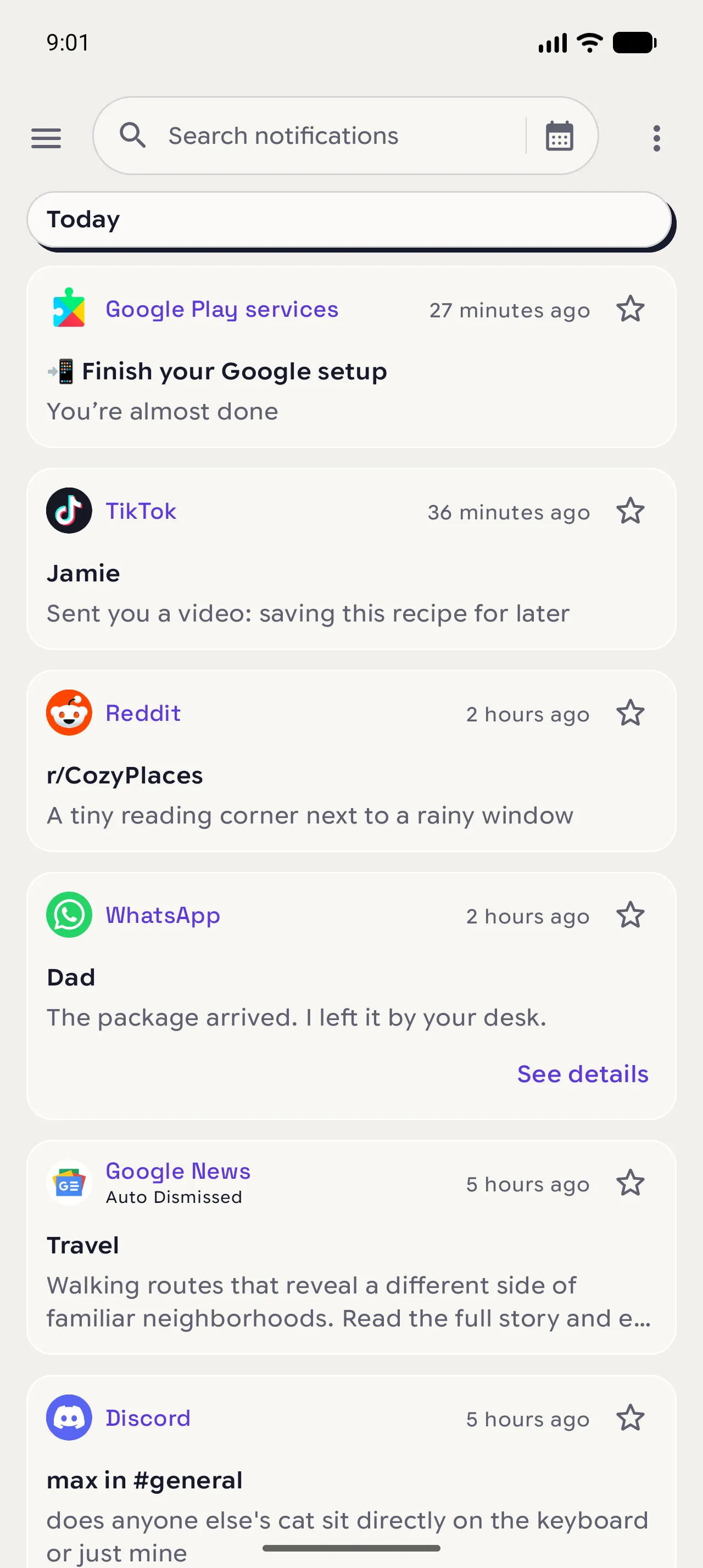
Open the notification
Start from the notification you want to keep in view.
Tap the notification › See details.
02
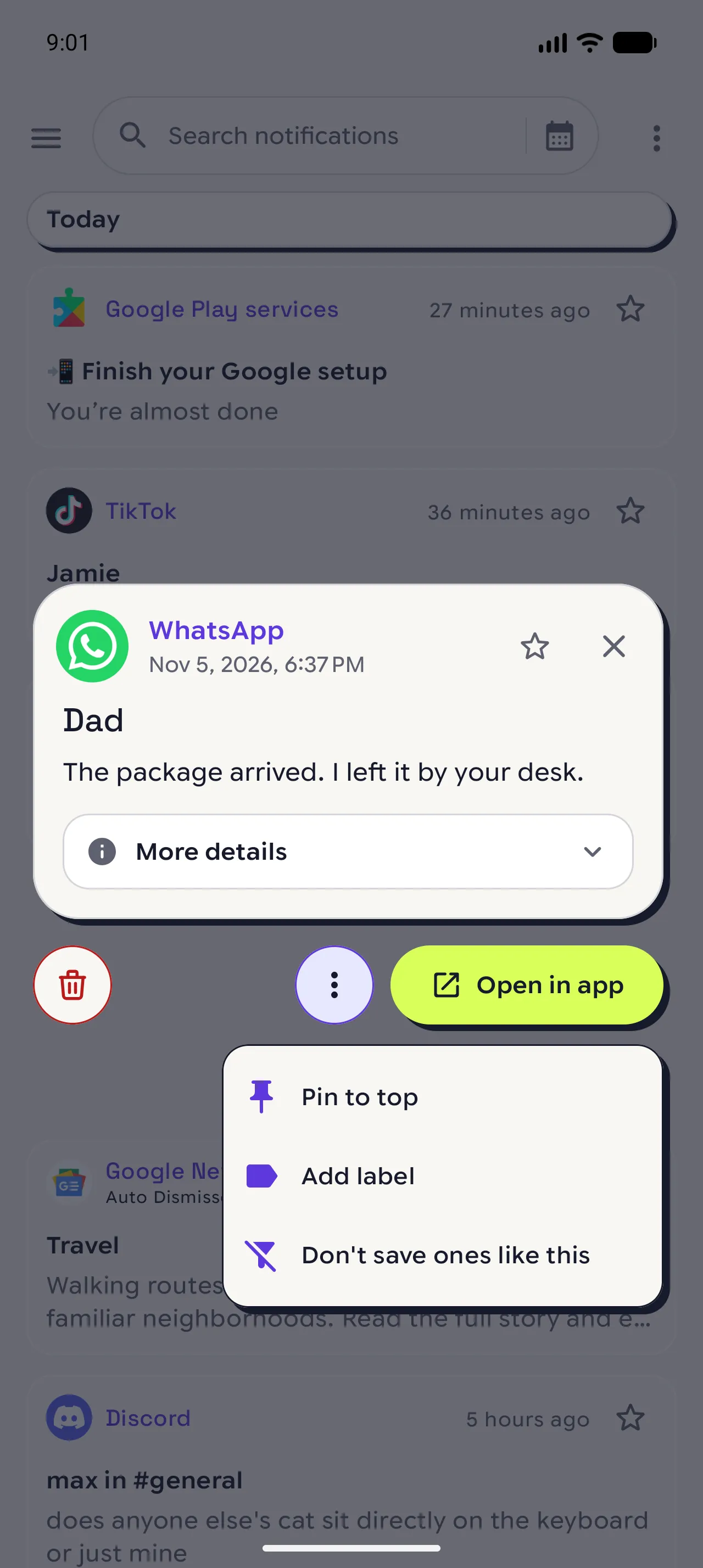
Pin it to the top
Pin it from the notification's details.
More options (⋮) › Pin to top.
03
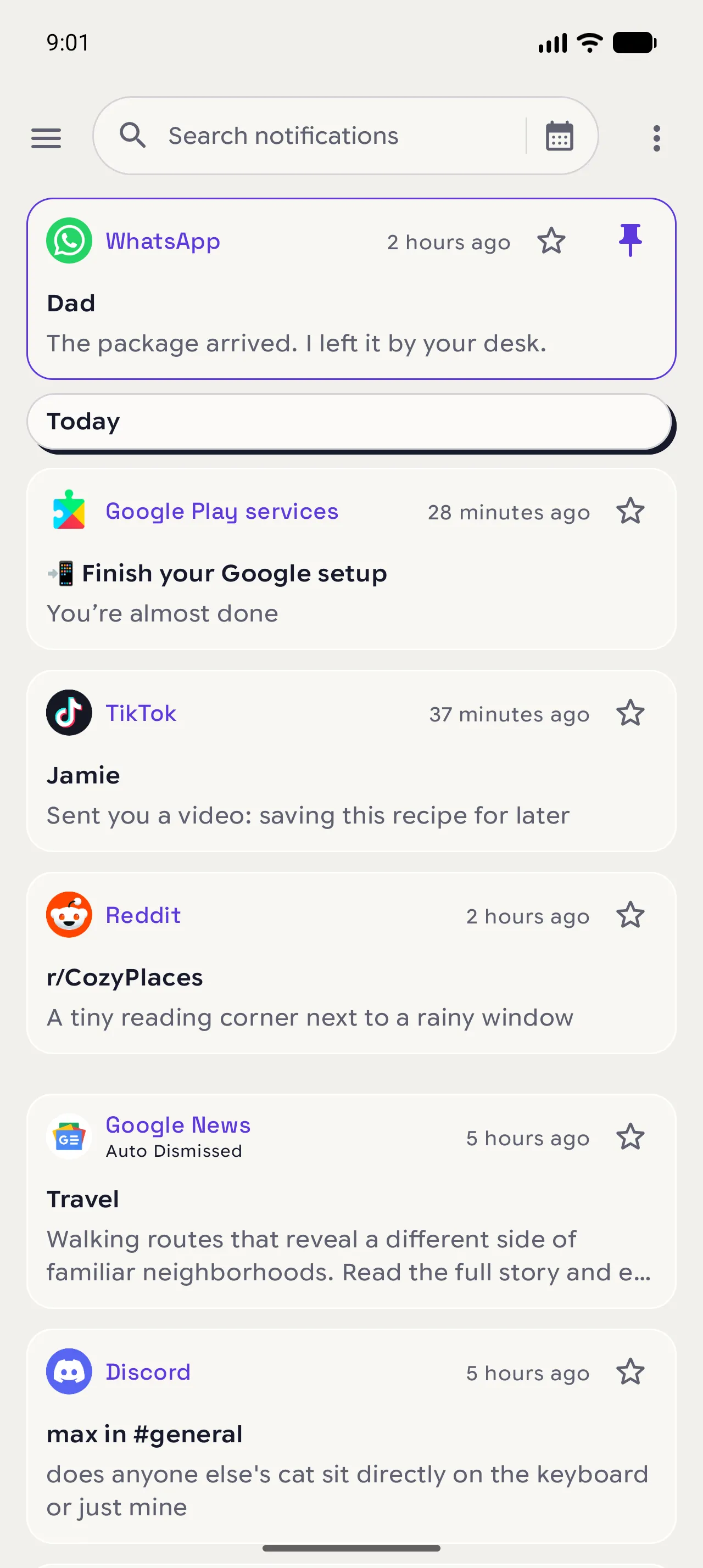
Find it above your history
Close the details. The notification now sits above your history, with a pin icon and a purple outline.
04
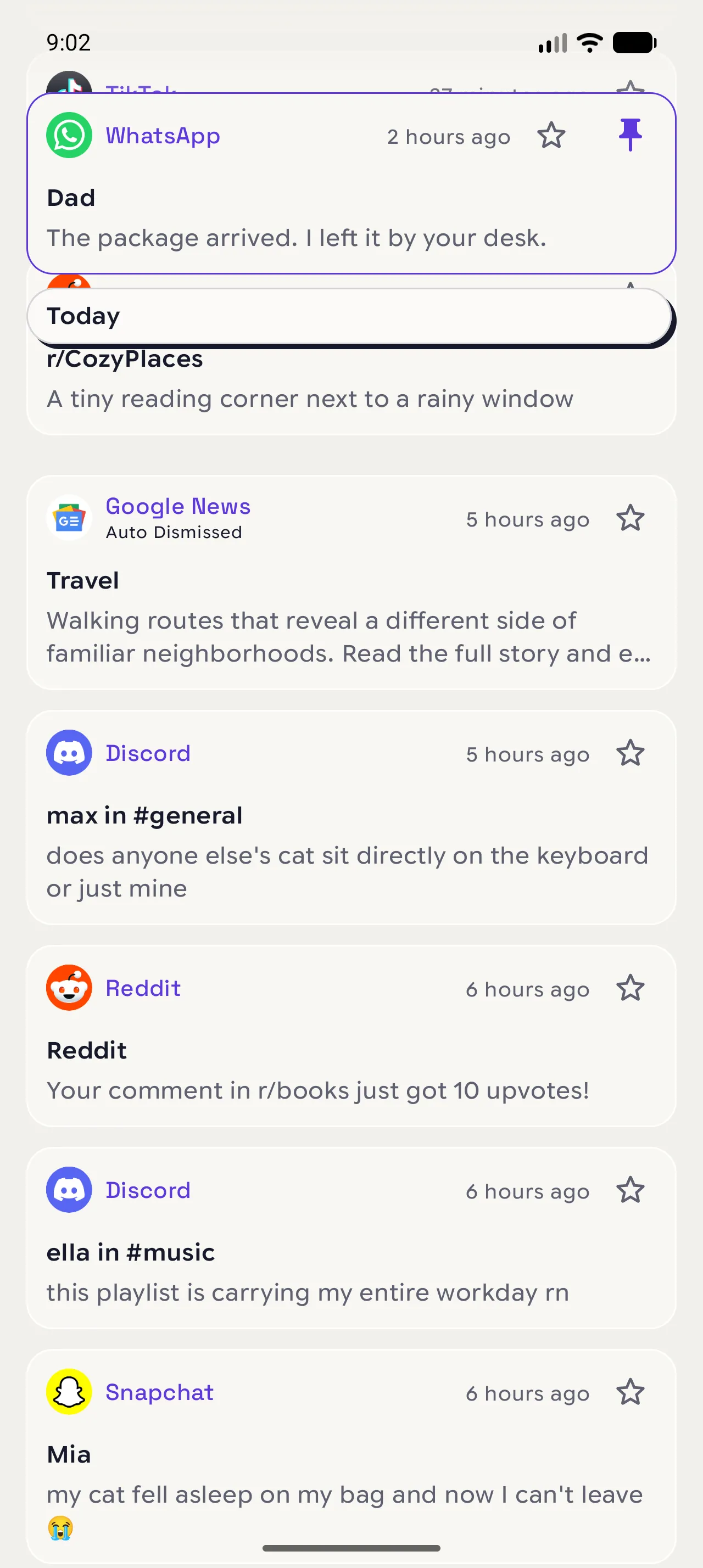
Scroll as usual
It stays under the top of the screen while the rest of your history moves below it.
05
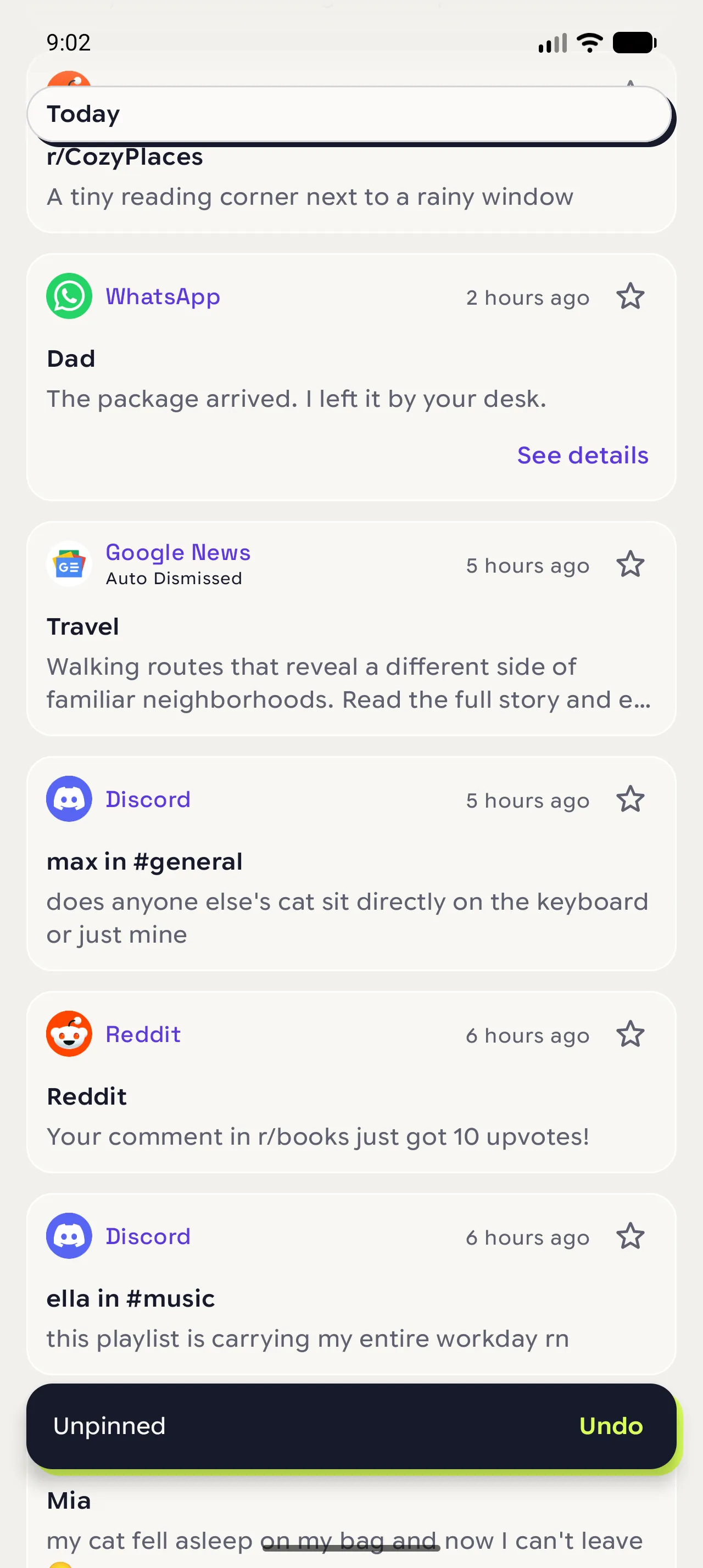
Unpin it
Put it back in your history when you are done.
Tap its pin icon › tap Undo if you change your mind.
When you are done
One notification, always in view.
✓ A pinned notification has a pin icon and stays above your history until you unpin it.
Open in NotispaceOpen the appA few notes
- Only one notification can be pinned. Pinning another one replaces it.
- A pinned notification stays when you clear your history or when old notifications are removed.
- The pin steps aside during search and filters, then comes back.